How to Download Your Driving Licence via DigiLocker: The Complete Guide
- 1Download your DigiLocker driving licence PDF in just a few minutes
- 2Fix name mismatch errors that stop your DL from fetching properly
- 3Know where DigiLocker DL works for police, airports, and rentals
- What DigiLocker Actually Is and Why It Matters for Your DL
- Is a DigiLocker DL Valid for Traffic Police, Airports, and Rentals?
- Before You Begin: Everything You Need Ready
- How to Download Your Driving Licence via DigiLocker: Step by Step
- DL Not Fetching in DigiLocker?
- Using DigiLocker at Airports and Car Rental Counters: What Actually Works
- DigiLocker vs mParivahan: Which One to Use
There are two kinds of DigiLocker users in India. The first type set it up properly, saved the PDF to their phone, and has never once panicked at a checkpoint. The second type opened the app at the toll plaza for the first time, got a spinning loader, and quietly handed over their wallet instead.
This guide is built to make you the first type. It covers the complete DigiLocker driving licence download process from account creation to PDF saved on your device, the name mismatch problem that silently blocks thousands of users, how to access your DL offline when there is no network, and exactly what happens when you show the document at an airport gate or a car rental counter.
What DigiLocker Actually Is and Why It Matters for Your DL
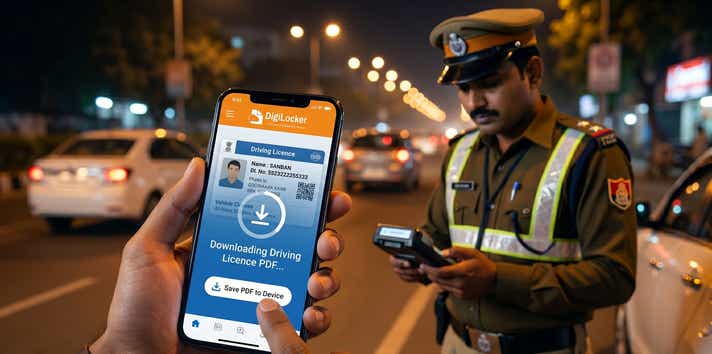
DigiLocker is the Indian government’s official cloud document platform, built and operated by the Ministry of Electronics and Information Technology (MeitY). When you perform a DigiLocker driving licence download, the app does not create a copy of your licence. It sends a live, authenticated API request to the Ministry of Road Transport and Highways’ national Sarathi database, retrieves your current DL record, and presents it as a digitally signed PDF tied to your Aadhaar identity.
This is why a DigiLocker DL is fundamentally different from a photocopy or a scanned image. The digital signature embedded in every DigiLocker document is issued by MoRTH, carries a certificate from the government’s certifying authority, and can be verified by any officer or institution that knows what to look for. It cannot be fabricated. It cannot be altered without the signature breaking.
And crucially, it is legally the same document as the physical card you have in your wallet.
Is a DigiLocker DL Valid for Traffic Police, Airports, and Rentals?
The answer is yes, and it is worth knowing exactly which laws back this up so you can cite them confidently when needed.
- MoRTH Circular No. RT-11036/93/2018-RS directs all traffic enforcement authorities in India to accept documents displayed via DigiLocker and mParivahan as legally equivalent to physical originals at every roadside check, toll plaza, and enforcement situation.
- The Motor Vehicles (Amendment) Act, 2019 and the Information Technology Act, 2000, together give DigiLocker documents the same legal force as their physical counterparts.
Before You Begin: Everything You Need Ready
- An active DigiLocker account. Sign up at digilocker.gov.in or via the DigiLocker app on Android or iOS. The app is free on both platforms.
- Your Aadhaar-linked mobile number. OTP verification is mandatory for login and for fetching documents. The OTP goes to the number registered with UIDAI, not necessarily your current primary number.
- Your driving licence number. Format: [State Code][RTO Code][Year][Unique Number], for example, MH0120220034567. Check your physical DL card, any RTO SMS, or your Parivahan account at parivahan.gov.in.
- Your date of birth. Entered in DD/MM/YYYY format during the DL fetch request.
- Your Aadhaar number. Required to link Aadhaar to DigiLocker during account setup. The linking is a one-time step.
Before You Start: Check for a Name Mismatch
The most common reason DigiLocker fails to fetch a DL is a name discrepancy between the Aadhaar record and the DL record. Before spending twenty minutes troubleshooting, check whether your name appears identically on both documents. If they differ, fix the mismatch first. The full guide is in the troubleshooting section below.
How to Download Your Driving Licence via DigiLocker: Step by Step
Every step below uses the exact button and menu label as shown in the current DigiLocker app interface:
1. Download and open the DigiLocker app. Available free on Google Play and the Apple App Store. Search ‘DigiLocker’ and install the app published by the National e-Governance Division. Avoid third-party lookalikes.
2. Log in or create an account. Tap Sign In if you have an existing account. Enter your registered mobile number and security PIN, followed by the OTP sent to your Aadhaar-linked number. If you are new, tap Sign Up, enter your mobile number, verify the OTP, and set a six-digit security PIN.
3. Link your Aadhaar. First-time users will be prompted to link Aadhaar. Tap Link Aadhaar, enter your 12-digit Aadhaar number, and verify with the OTP sent to your Aadhaar-registered mobile. This one-time step allows DigiLocker to automatically pull government documents tied to your identity.
4. Tap Search Documents. On the home screen or main menu, locate and tap Search Documents (sometimes shown as Get More Documents in the app version). This is the gateway to fetching documents not yet in your locker.
5. Search for Driving Licence under MoRTH. In the search bar, type ‘Driving Licence’. From the results, tap the entry listed under Ministry of Road Transport and Highways. Do not tap state transport department entries, which may show in search results depending on your state.
6. Enter your DL number and date of birth. A short form appears. Enter your DL number exactly as it appears on your physical card, including the state and RTO code prefix. Select your date of birth in DD/MM/YYYY format. Double-check both fields before submitting; a single wrong character returns no result.
7. Complete OTP verification. DigiLocker may prompt for an additional OTP depending on your account security settings. Enter it and confirm.
8. Your DL appears in Issued Documents. The fetch takes a few seconds. Once complete, your DigiLocker driving licence appears in the Issued Documents section of your locker. It stays here permanently and updates automatically when your DL record changes.
9. Download the PDF. Open your DL in Issued Documents and tap the download icon. A digitally signed PDF saves to your device. This PDF includes your name, photograph, DL number, vehicle class authorisations, validity date, and a QR code for live verification. Save this PDF to your phone’s local storage now, before you need it in a low-network area.
Tip: Before relying on your digital driving licence at a roadside check, it is also smart to regularly check e-challan status online so that any pending traffic fines do not create unnecessary trouble during verification.
DL Not Fetching in DigiLocker?
If your DigiLocker DL download is failing and you are seeing an error, a blank result, or a ‘document not found’ message, the most frequent cause is a name mismatch between your Aadhaar record and your DL record. The Sarathi database uses your name from the DL application form. Your DigiLocker account is anchored to your Aadhaar name. If these two names do not match letter-for-letter, including spelling, spaces, initials, and format, the system cannot link them and returns no result.
Which Record Should You Change?
This is where most people waste time. The instinctive response is to go to the RTO and request a DL name correction. For most mismatch types, that is the harder route. Here is a direct comparison:
| Mismatch Type | Easiest Fix | Why This Route |
| Spelling variation (Rahul vs Rahool) | Update Aadhaar via UIDAI | Faster than RTO; processed in 7–14 days online or at Aadhaar Seva Kendra |
| Initial vs full name (R. Kumar vs Rajesh Kumar) | Update Aadhaar name to match DL | Expanding an initial on Aadhaar is simpler than a DL name change at RTO |
| Maiden vs married name | Update Aadhaar to the current legal name | Requires a marriage certificate; UIDAI processes this. RTO update is also an option if DL predates marriage |
| DL name genuinely wrong (RTO data entry error) | Raise name correction at issuing RTO | Only scenario where the RTO route is unavoidable; bring a birth certificate or Class 10 marksheet as proof |
The rule of thumb: update Aadhaar first unless the DL name is demonstrably wrong due to an RTO data entry error. UIDAI’s name update process is available online at myaadhaar.uidai.gov.in for minor corrections, and at Aadhaar Seva Kendras for significant changes. Turnaround is typically 7 to 14 days for online submissions. RTO name corrections require a visit, an affidavit or supporting document, and a processing window that varies by RTO.
Other Reasons Your DL May Not Fetch
- Pre-2012 licence not in Sarathi: Licences issued before approximately 2012 may not have been migrated into the national digital database. Your DL physically exists, but the record does not exist in Sarathi. Solution: Visit your issuing RTO and request a DL backlog data entry. The process typically takes 7 to 14 days to propagate into the national system after the RTO updates the record.
- Wrong DL number: One transposed digit, one wrong letter in the state or RTO code, and the fetch returns nothing. Recheck against your physical card character by character.
- Mobile number not in Sarathi: Log in to parivahan.gov.in, go to DL Services, and confirm your registered mobile number. If it differs from your Aadhaar-linked number, OTP delivery for DigiLocker login may work, but the DL fetch may still fail. Update it at the Parivahan portal.
- Server downtime: DigiLocker and the MoRTH database undergo scheduled maintenance, typically late at night. If every other check passes and the fetch still fails, wait 12 to 24 hours and try again.
Do Not Attempt the Fetch More Than Three Times in a Row
Repeated failed fetch attempts within a short period can temporarily lock the DigiLocker-to-Sarathi API request for your account. If you have tried twice and it is failing, wait 30 minutes before trying again. Use the time to verify your DL number and date of birth against your physical card rather than retrying immediately.
Using DigiLocker at Airports and Car Rental Counters: What Actually Works
The question that sends people down the DigiLocker rabbit hole is often not about traffic police. It is about whether the DigiLocker DL will be accepted at an airport security gate or a car rental company. The answer varies by how you present it.
Airport CISF Entry Gates
CISF personnel at domestic airport entry gates are trained to accept Aadhaar, PAN, Voter ID, Passport, and DigiLocker documents as valid identity proof. What they require is the live DigiLocker app interface with the document open, not a screenshot, not a printout of the PDF, not a photograph of your physical DL.
Car Rental Companies: Zoomcar, Revv, and Similar Platforms
The situation at car rental counters is slightly different from a traffic checkpoint, because rental companies need to attach a copy of your DL to your booking file. This is where the DigiLocker PDF has a clear advantage: you can download the digitally signed PDF and either email it directly or upload it to the rental platform’s document portal.
What gets rejected at rental counters is a screenshot of your DigiLocker or mParivahan screen.
For in-person rental pickups where the counter agent wants to verify your DL visually, the live DigiLocker app on your screen is fully accepted. For digital-only or pre-submission workflows, download the PDF and submit that.
DigiLocker vs mParivahan: Which One to Use
Both apps are official, both are free, and both are fully legally valid. But they are built for different use cases, and using the wrong one in the wrong situation creates friction that is easy to avoid.
| Feature | DigiLocker DL Download | Parivahan DL Extract |
|---|---|---|
| Legal Validity | Fully valid under IT Act and MV Act | Valid as an official record extract |
| Real-time Verification | Yes, QR code verified live | No live QR on extract |
| Best For | Traffic checks, KYC, rental | Administrative or reference use |
| Format | Digitally signed PDF | Printable extract |
| Cost | Free | Free |
The Parivahan portal at parivahan.gov.in allows you to download a DL extract, which is an official record printout of your licence details. It is not the same as a DigiLocker DL.
- DigiLocker DL: A digitally signed PDF issued by MoRTH. Carries an embedded certificate from the government’s certifying authority. QR code enables live database verification. Accepted at traffic checks, airports, and KYC processes.
- Parivahan DL Extract: A printable summary of your licence record. Useful for administrative reference and paperwork where someone needs to see your DL details in a printed format. Does not carry the same digital signature authority as the DigiLocker document. No live QR verification.
Frequently Asked Questions
Expand all