How to Download Driving Licence via mParivahan App: The Complete Guide
- 1Download your driving licence on mParivahan within minutes
- 2Know what to do if traffic police refuse your digital DL at checks
- 3Fix ‘No Record Found’ errors for old licences with the backlog entry process
- What mParivahan Actually Is (and What It Isn't)
- Is mParivahan DL Valid Across India? The Legal Position, Clearly Stated
- What You Need Before Opening the App
- Setting Up mParivahan for Driving Licence Access: Step by Step
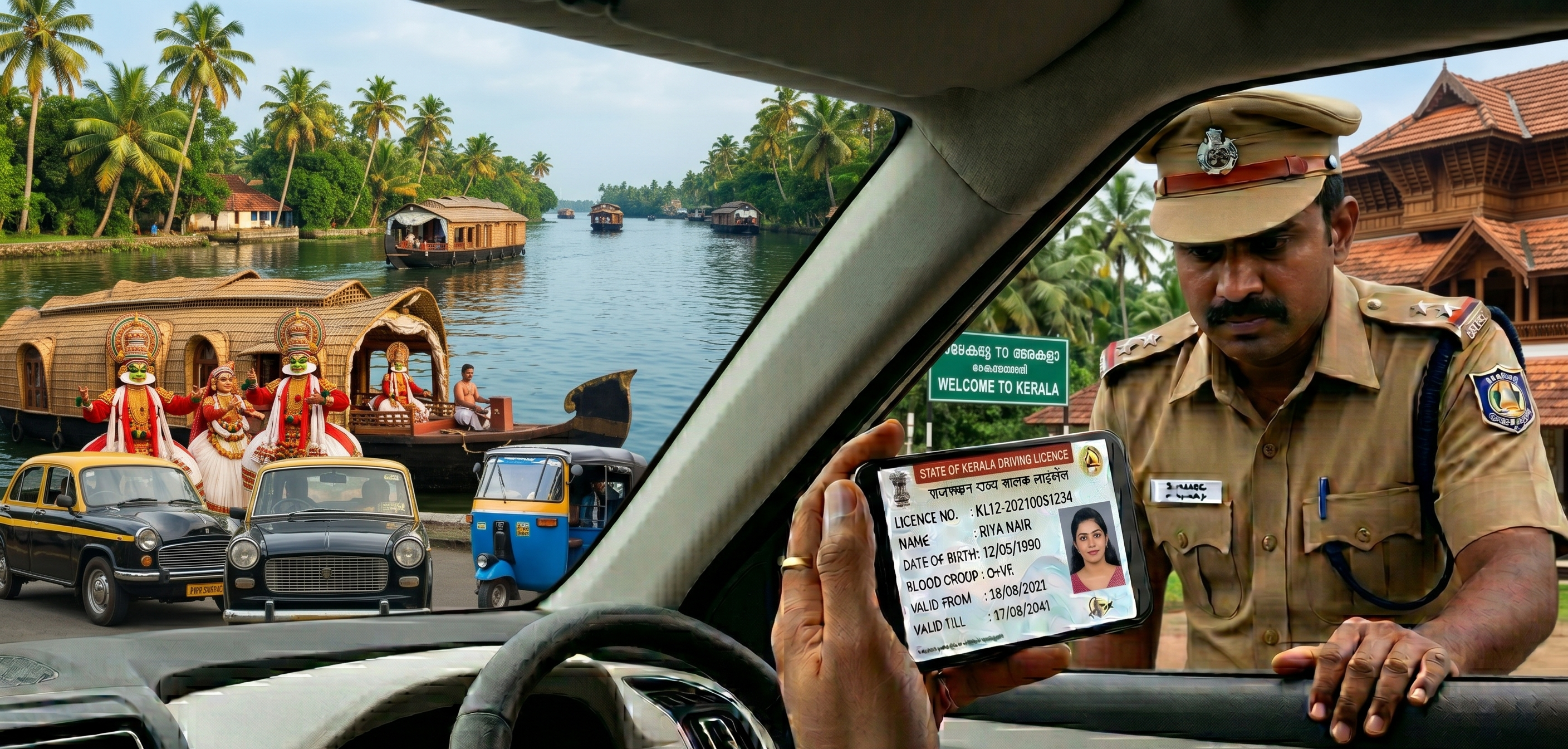
- How to Show Your DL to Traffic Police on mParivahan
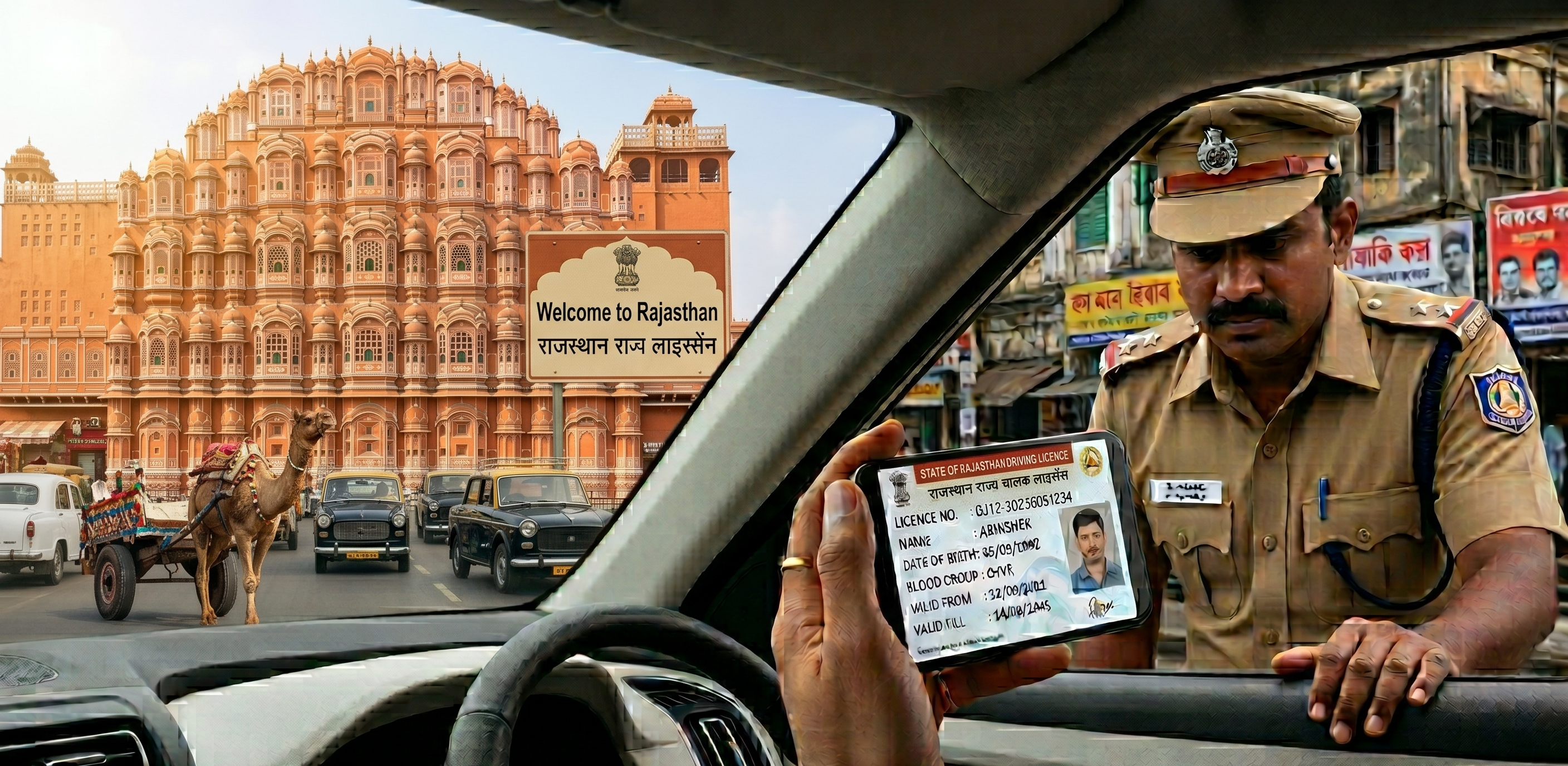
- What to Do If a Traffic Police Officer Refuses to Accept Your mParivahan DL
- Pre-2012 Licence Showing ‘No Record Found’? The Backlog Entry Fix
- mParivahan App Not Working? Quick Fixes at the Checkpoint and at Home
- mParivahan vs DigiLocker: Which One Should You Use for Your Driving Licence?
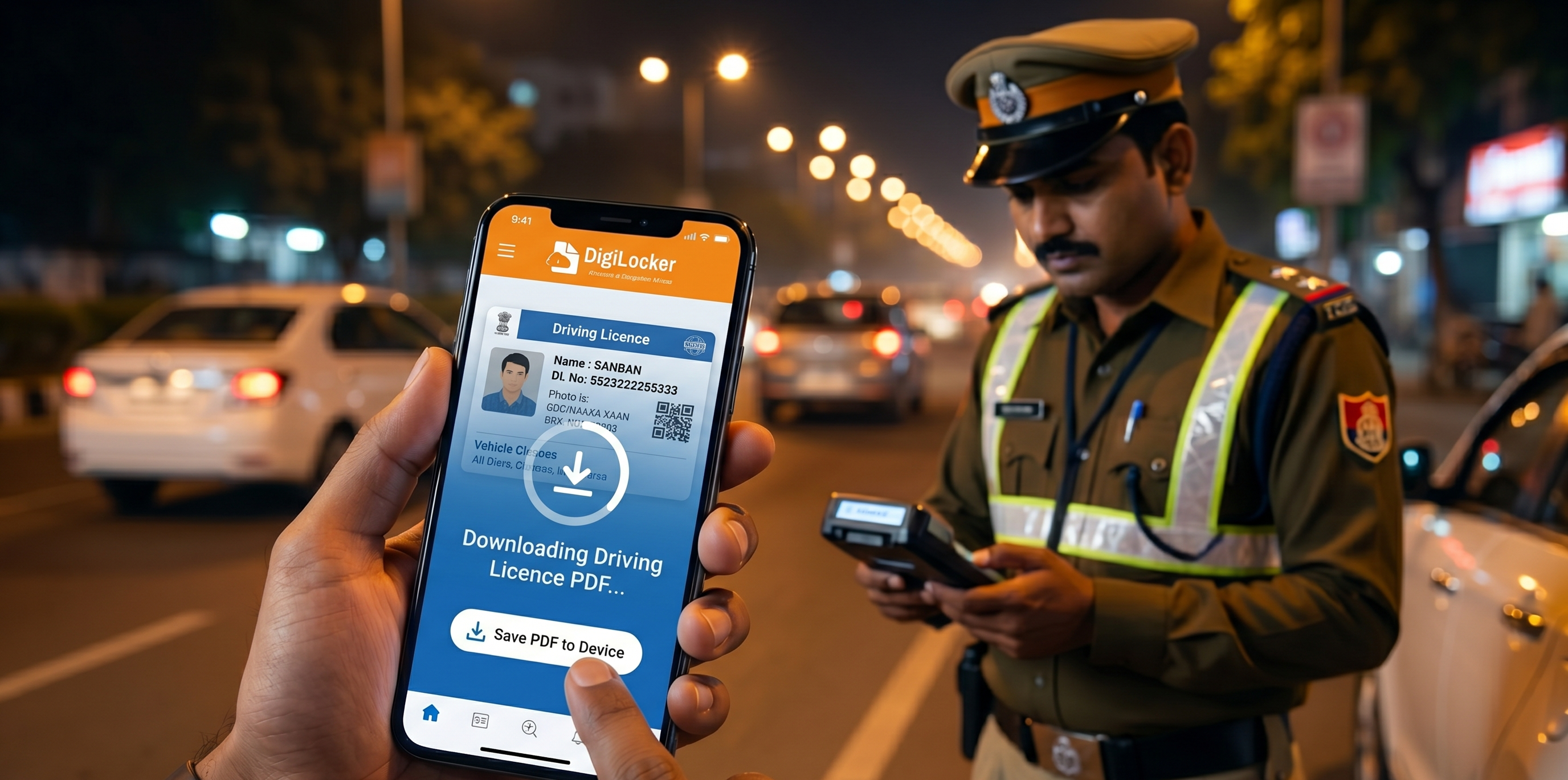
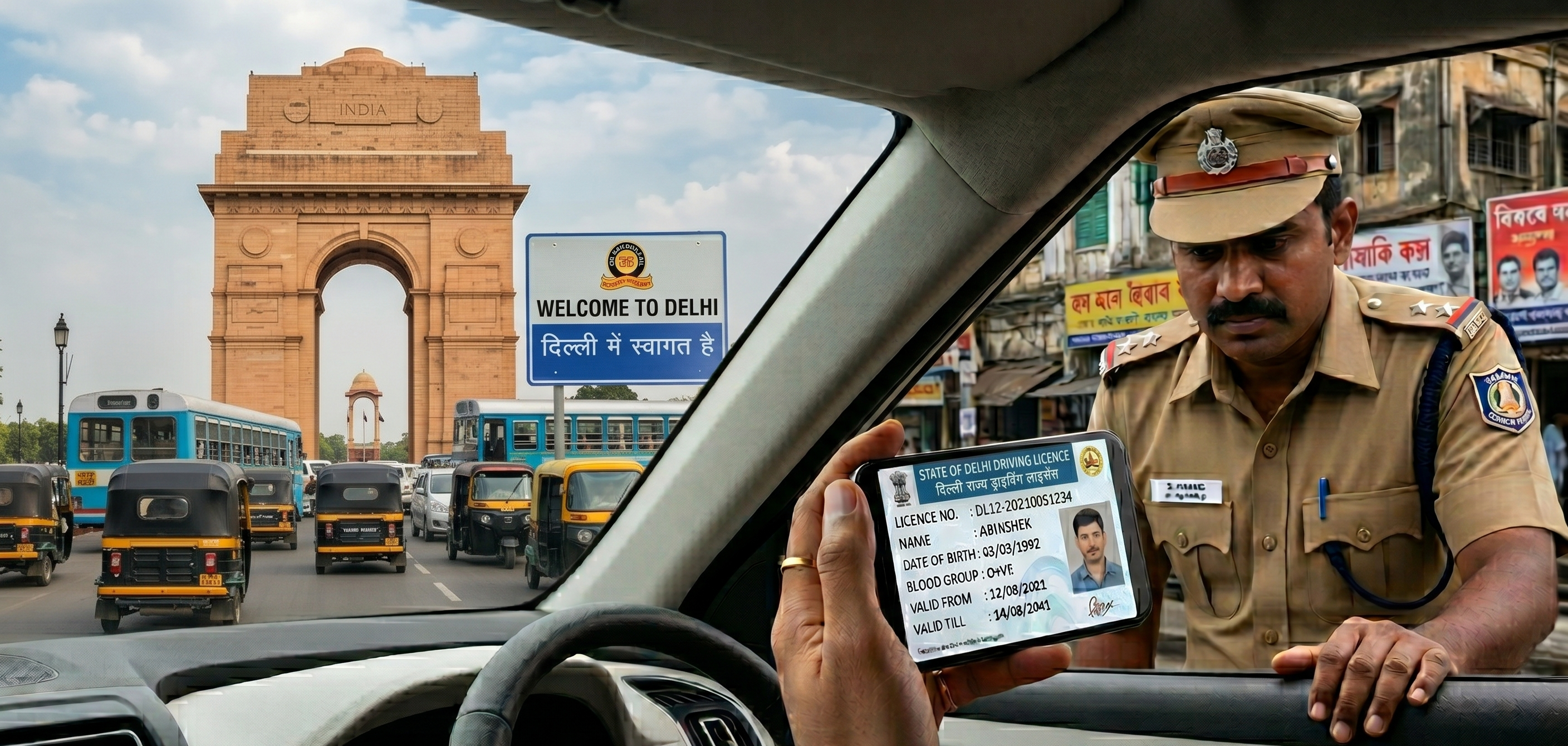
Let’s say, you are at a toll checkpoint late at night, the officer wants your documents, and your wallet with the physical DL is sitting on your desk at home. A year ago, that was a fine. Today, it is a ten-second unlock and a tap on the screen.
The mParivahan app has fundamentally changed what ‘carrying your licence’ means in India. But plenty of drivers still have questions about setting it up correctly, what to do when a traffic officer refuses to accept it, how to handle the app in a no-network zone, and what the mParivahan driving licence download actually gives you versus what DigiLocker gives you. This guide answers all of it.
What mParivahan Actually Is (and What It Isn't)
mParivahan is the official mobile application of the Ministry of Road Transport and Highways (MoRTH), built and maintained by the National Informatics Centre. It is available free on both Android and iOS and pulls your documents live from the Vahan and Sarathi national databases, which are the same government records your physical card was printed from.
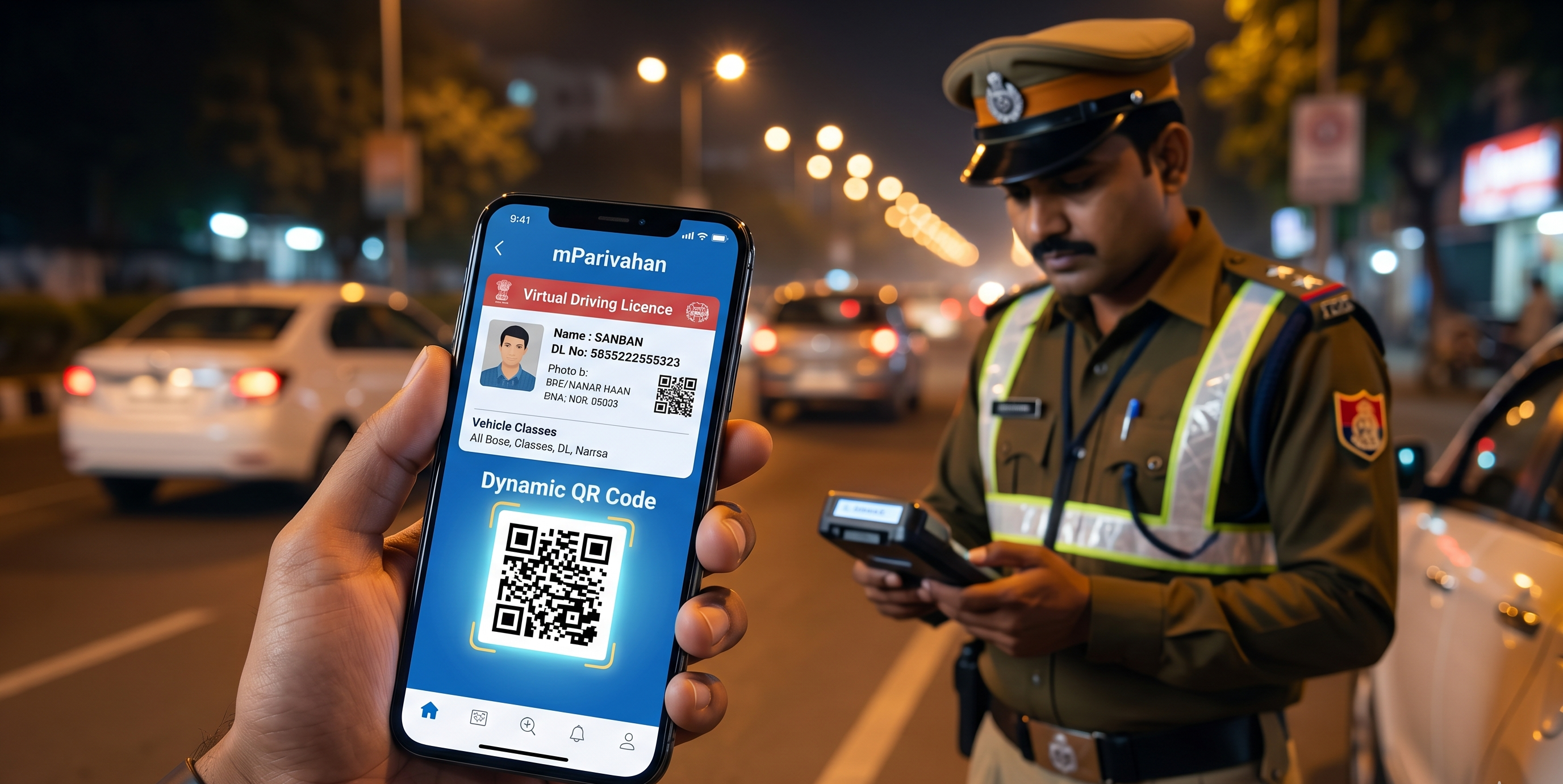
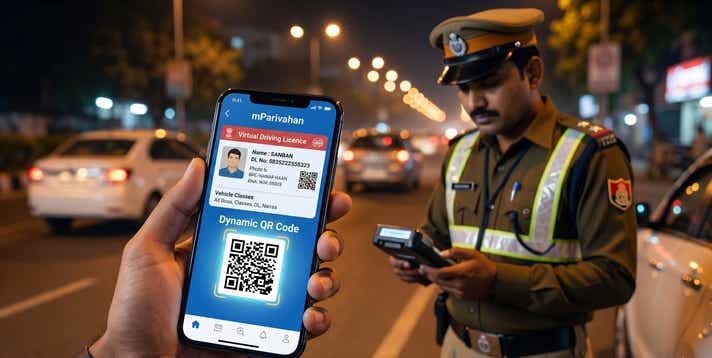
What the app gives you is a virtual DL card, not a downloaded PDF. Your driving licence appears as a digital card inside the app, showing your photograph, name, DL number, vehicle class authorisations, validity period, and a dynamic QR code. That QR code is the critical element: it refreshes periodically and connects live to the government database when an officer scans it, making it verifiably real in a way that a photocopy or screenshot never can be.
Is mParivahan DL Valid Across India? The Legal Position, Clearly Stated
Yes, completely. Two legal instruments establish this:
- MoRTH Circular RT-11036/93/2018-RS: This circular explicitly directs traffic enforcement authorities across India to accept documents displayed via mParivahan and DigiLocker as valid equivalents to physical originals at roadside checks.
The Motor Vehicles (Amendment) Act, 2019: This Act formally recognises documents stored and accessed via government-approved digital platforms as legally equivalent to physical documents under the Motor Vehicles Act, 1988.
What You Need Before Opening the App
The setup takes about three minutes if you have these ready:
- Your DL number. Format: [State Code][RTO Code][Year][Unique Number] , for example, DL0120210056789. Find it on your physical DL card, in an SMS from your RTO, or by logging into parivahan.gov.in.
- Date of birth. Used to verify your identity against the Sarathi database.
- Active mobile number. For the OTP during registration. This should ideally be the same number linked to your DL record.
- The mParivahan app. Free download on Google Play and the Apple App Store. Search ‘mParivahan’ and install the app published by the National Informatics Centre. Ignore third-party lookalikes.
How to Add Your DL in mParivahan Without a Chassis Number
This is one of the most common search queries around the app, and the answer is simple: chassis and engine numbers are not required to add your driving licence. Those fields only appear when you are adding your vehicle’s Registration Certificate (RC). For the mParivahan DL setup, you need nothing except your DL number and date of birth.
Setting Up mParivahan for Driving Licence Access: Step by Step
Every step is listed with the exact button or menu label as it appears in the current version of the app:
1. Download and install. Open Google Play or the App Store, search ‘mParivahan’, and install the official app published by NIC. It is free and under 20 MB.
2. Register with your mobile number. Open the app. Tap Get Started and enter your mobile number when prompted. You will receive an OTP to verify. Enter it and confirm.
3. Create your MPIN. The app immediately asks you to set a Create MPIN, a four or six-digit PIN that you will use every time you open the app. Choose something you will remember, but keep it different from your phone’s screen lock. This MPIN setup is a one-time step and is your only login credential going forward.
4. Tap My DL on the home screen. The mParivahan home dashboard shows two primary sections: My RC (for your vehicle registration) and My DL (for your driving licence). Tap My DL.
5. Enter your DL number and date of birth. A short form appears asking for these two details. Enter your DL number exactly as it appears on your card, including the state and RTO code prefix. The field is case-sensitive in some app versions.
6. Review the fetched record. The app connects to the Sarathi database and displays your DL details: name, photograph, vehicle classes, and validity. Verify that everything matches. If there is a mismatch, see the troubleshooting section below.
7. Tap Confirm or Save. Your mParivahan driving licence is now set up. The My DL section will show your virtual card with the dynamic QR code. You are done.
Also Set Up DigiLocker While You’re at It
The mParivahan app is ideal for roadside checks. DigiLocker gives you a downloadable, digitally signed PDF that banks, HR departments, and insurance companies can attach to a file. Both take under five minutes. Set up both today and cover every situation.
How to Show Your DL to Traffic Police on mParivahan
The correct sequence at a checkpoint takes about fifteen seconds if your MPIN is ready:
- Unlock your phone and open mParivahan.
- Enter your MPIN to log in.
- Tap My DL to bring up your virtual DL card.
- Turn your screen brightness to maximum.
Display the QR code clearly to the officer, or hand your phone over if they wish to hold it for scanning.
Traffic police personnel are equipped with handheld e-challan devices that can scan the mParivahan QR code directly. The scan connects to the national database and returns your complete DL record in real time. This is more information than they get from looking at a physical card.
What to Do If a Traffic Police Officer Refuses to Accept Your mParivahan DL
This is the situation that makes most drivers anxious about relying on a digital licence: a traffic officer says ‘digital nahin chalega’ and insists on seeing the physical card. It happens, and it is more common in smaller towns and among older enforcement personnel who have not been updated on the current legal position.
Here is how to handle it without escalating unnecessarily:
Step 1: Stay Calm and State the Legal Basis
Politely inform the officer that you have a digitally issued driving licence on mParivahan, which is legally valid under MoRTH Circular RT-11036/93/2018-RS and the Motor Vehicles (Amendment) Act, 2019. You do not need to argue. You are citing specific legal authority.
Step 2: Offer the QR Code for Scanning
Remind the officer that their own e-challan device, the handheld scanner they use to issue digital challan, is capable of scanning the QR code on your mParivahan DL. The scan connects directly to the national Sarathi database and returns your complete licence record.
Step 3: Note Details if a Challan Is Issued Anyway
If the officer proceeds to issue a challan for not carrying a valid DL despite your digital licence being present, do not pay it on the spot. Note the officer’s badge number, the challan number, the location, and the date and time. A challan issued in contravention of a MoRTH circular can be contested in the Motor Accidents Claims Tribunal or the relevant traffic court.
Never Pay an Unofficial Fine for a Valid Digital Licence
If an officer asks for an informal payment because you do not have a physical card, this is not a legal transaction. A valid mParivahan DL cannot lawfully attract a fine for ‘not carrying a licence.’ Any payment made in this situation has no legal basis.
Pre-2012 Licence Showing ‘No Record Found’? The Backlog Entry Fix
If you hold a driving licence issued before approximately 2012, your record may not have been migrated into the Sarathi national database when the government digitised its records. When you search your DL number in mParivahan, the app returns ‘No Record Found’ or simply shows no data. This is not an error in the app, the record genuinely does not exist in the national system yet.
The process to fix this is called a DL Backlog Entry, and it is handled entirely at your issuing RTO. Here is exactly what to do:
Step 1: Gather Your Original Documents
Bring your original driving licence booklet or card (even if worn or faded), your Aadhaar, and a passport-size photograph to the RTO where the licence was originally issued.
Step 2: Visit the DL Desk and Request a Backlog Entry
At the RTO counter, tell the officer that your DL record is not found on the Sarathi portal and you would like a backlog data entry request raised.
Step 3: Verify and Renew Simultaneously if Needed
If your old licence is also due for renewal (licences issued before 2012 for non-transport vehicles were typically valid for 20 years), this is the right moment to combine the backlog entry with a renewal application. Renewing while the record is being entered avoids a second trip. The RTO officer can initiate both processes together.
Step 4: Check mParivahan Again After 7 to 14 Days
Database updates after a backlog entry typically take one to two weeks to propagate across the Sarathi system. After that, your DL number will return results on mParivahan, DigiLocker, and parivahan.gov.in. If the record still does not appear after 14 days, return to the RTO with your receipt from the backlog entry request.
mParivahan App Not Working? Quick Fixes at the Checkpoint and at Home
DL Not Showing or Blank Screen
- Wrong DL number format: Recheck every character. The state code, RTO code, year, and unique number must all be accurate. A single wrong digit returns no result.
- DOB mismatch: The date of birth you entered must match what the RTO recorded, which may differ from your Aadhaar if there was a data entry error. Log in to parivahan.gov.in to see the registered date of birth on your DL record.
- Pre-2012 licence not in Sarathi: See the backlog entry section above.
- Outdated app version: Open the Play Store or App Store and update mParivahan. Old versions frequently break on API changes.
Server maintenance: MoRTH servers undergo scheduled maintenance, usually between 11 PM and 6 AM. If you are getting repeated timeout errors, wait a few hours and try again.
OTP Not Arriving
Mobile number not linked to your DL record: Log in to parivahan.gov.in > DL Services and update your registered mobile number. The OTP goes to your Sarathi-registered number, not necessarily your current primary number. Check whether your carrier is blocking OTP SMSs. Toggle Airplane Mode off and on, then retry.
App Crashing or Freezing
- Clear app cache (Android): Settings > Apps > mParivahan > Storage > Clear Cache. Do not clear app data, which would log you out and require re-registration.
- Force stop and reopen: Settings > Apps > mParivahan > Force Stop. Reopen from your home screen.
- Uninstall and reinstall: Last resort, but effective for persistent crashes. Your DL data is stored server-side, so reinstalling does not lose your record. You will need to re-enter your MPIN and DL details.
QR Code Not Scanning When Shown to Officer
- Ensure your screen brightness is at maximum before presenting the code.
- Keep the phone still. A moving screen is harder for the scanner to read.
- Ensure you have an active internet connection. The QR code verification requires server connectivity.
- If the officer’s device is not reading it after three attempts, offer to let them manually enter your DL number into their e-challan system for database lookup instead.
Tip: Before relying on your digital driving licence at a roadside check, it is also smart to regularly check e-challan status online so that any pending traffic fines do not create unnecessary trouble during verification.
mParivahan vs DigiLocker: Which One Should You Use for Your Driving Licence?
The two most common questions people search when they realise both apps exist: ‘Is one more valid than the other?’ and ‘Do I need both?’ The short answers are no, and yes. Here is the complete breakdown:
| Feature | mParivahan | DigiLocker |
|---|---|---|
| Primary Format | Virtual card in app | Digitally signed PDF |
| Best For | Roadside checks, quick verification | KYC, bank submissions, document filing |
| Internet Required | Yes, for QR scan | Yes, for live verification |
| PDF Download | No (virtual card only) | Yes |
| Ease of Use | Very quick on mobile | Slightly more setup |
| Legal Validity | Fully valid | Fully valid |
The ideal approach is to have both set up. Use mParivahan for daily roadside checks and DigiLocker when you need a downloadable PDF for formal submissions.
Frequently Asked Questions
Expand all